Additional information
| Brand | solidworks |
|---|---|
| Availability | in_stock |

$79.99

SAFE CHECKOUT WITH PAYPAL – BUYER PROTECTION GUARANTEED
| Brand | solidworks |
|---|---|
| Availability | in_stock |

Backed by PayPal – your payment is 100% protected against non-delivery or fraud.

Order anytime, day or night. We deliver instantly and reliably.

We help you install, activate, or solve issues — no extra cost.
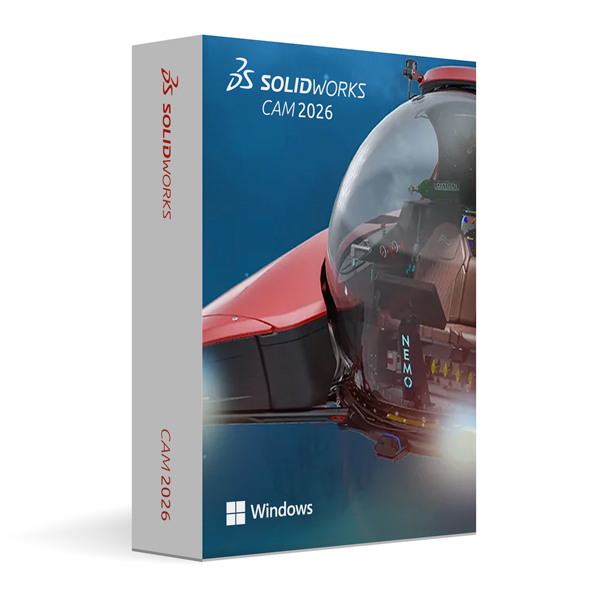
SOLIDWORKS CAM 2026 for Windows is a powerful CAM software solution for professional CNC machining and manufacturing planning. The software is designed for engineers, designers, and manufacturing companies and enables the efficient creation and optimization of CNC machining processes based on 3D CAD models.
With a 1-year license, fast download after purchase, and easy activation, you get direct access to modern CAM features for your manufacturing projects.
SOLIDWORKS CAM 2026 for Windows supports the creation of precise CNC machining strategies and optimized toolpaths. The software is closely integrated with SOLIDWORKS, enabling an efficient workflow from design to manufacturing.
With SOLIDWORKS CAM 2026, you can plan and optimize CNC machining processes based on existing 3D CAD models. This helps make manufacturing processes more efficient and reduce machining times.
The software provides intelligent features for creating and optimizing toolpaths. Repetitive tasks can be automated, reducing manual effort and increasing productivity.
SOLIDWORKS CAM 2026 enables seamless integration between CAD design and CNC manufacturing. Changes made to the 3D model can be efficiently incorporated into the manufacturing process.
Powerful CAM tools allow machining strategies to be planned, optimized, and prepared for various manufacturing tasks. This supports a streamlined and efficient production workflow.
SOLIDWORKS CAM 2026 is ideal for:
SOLIDWORKS CAM 2026 provides a performance-oriented environment for demanding CNC and manufacturing projects. Integration with SOLIDWORKS facilitates efficient data exchange between design and production.
Windows 10 or Windows 11 (64-bit), a multi-core processor, at least 8 GB of RAM (16 GB or more recommended), sufficient available storage space, and a suitable graphics card for the CAD/CAM environment are required.
An internet connection may be required for download, installation, and activation.
The license is intended for a usage period of 1 year. After purchase, you will receive the required information for download and activation.
Version: SOLIDWORKS CAM 2026
Operating System: Windows 10 / Windows 11 (64-bit)
License Type: 1-Year License
SOLIDWORKS CAM 2026 combines powerful CAM capabilities with the SOLIDWORKS environment and supports an efficient workflow from design through CNC machining.
Buy SOLIDWORKS CAM 2026 for Windows with a 1-year license, complete the activation, and start your professional CNC manufacturing planning right away.


 No products in the cart.

Reviews
There are no reviews yet.