
Windows Activation Instructions
This guide explains the standard Windows activation method first, plus an alternative Command Prompt method if needed. Follow each step carefully and use the screenshot placeholders to compare your screen.
Before You Start
Always try the standard activation method first. The CMD method should only be used if the normal process does not work.
Your installed Windows edition must match your purchased license edition (for example, Home with Home, Pro with Pro).
When contacting support, screenshots usually help resolve activation issues faster.
Method 1 - Standard Activation
RecommendedUse this method first for normal Windows activation through Settings.
- 1
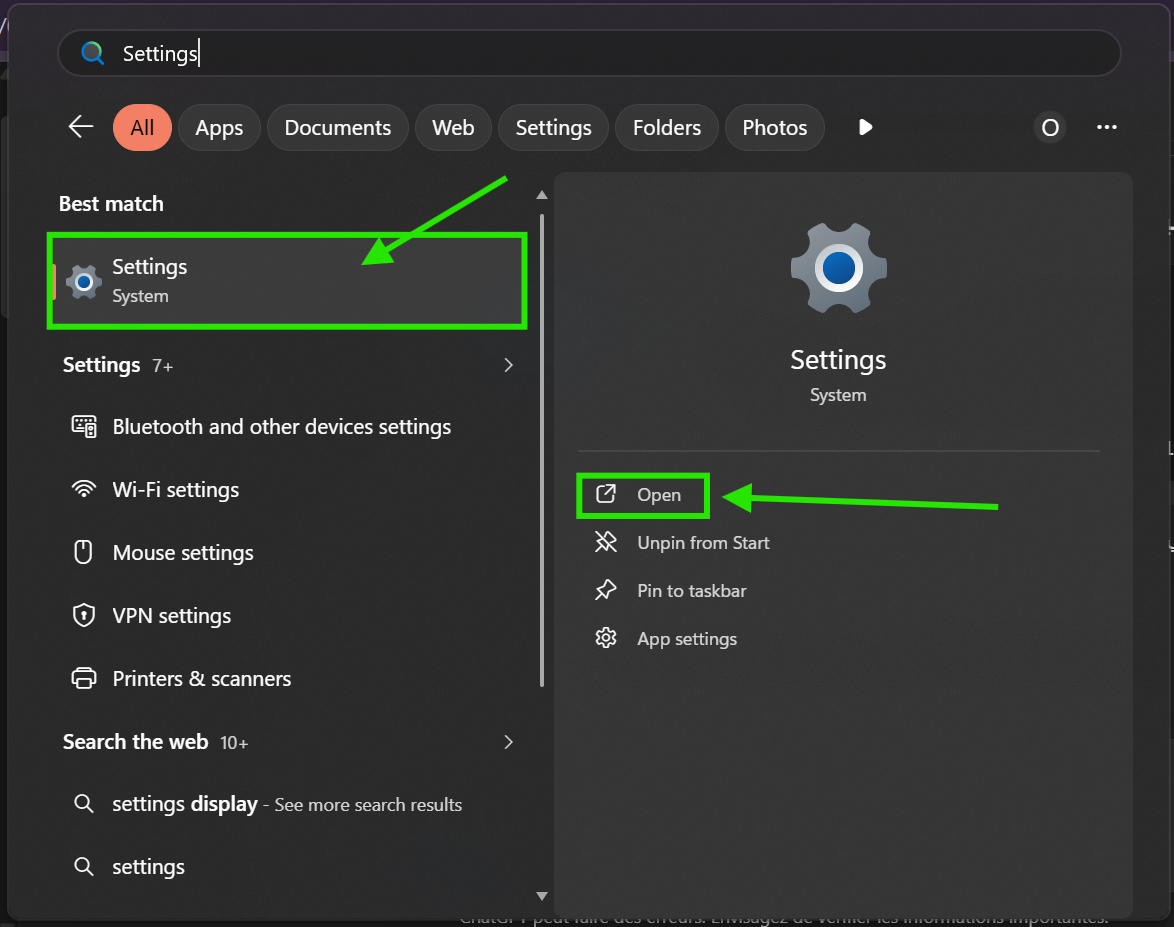
Open Settings.
- 2
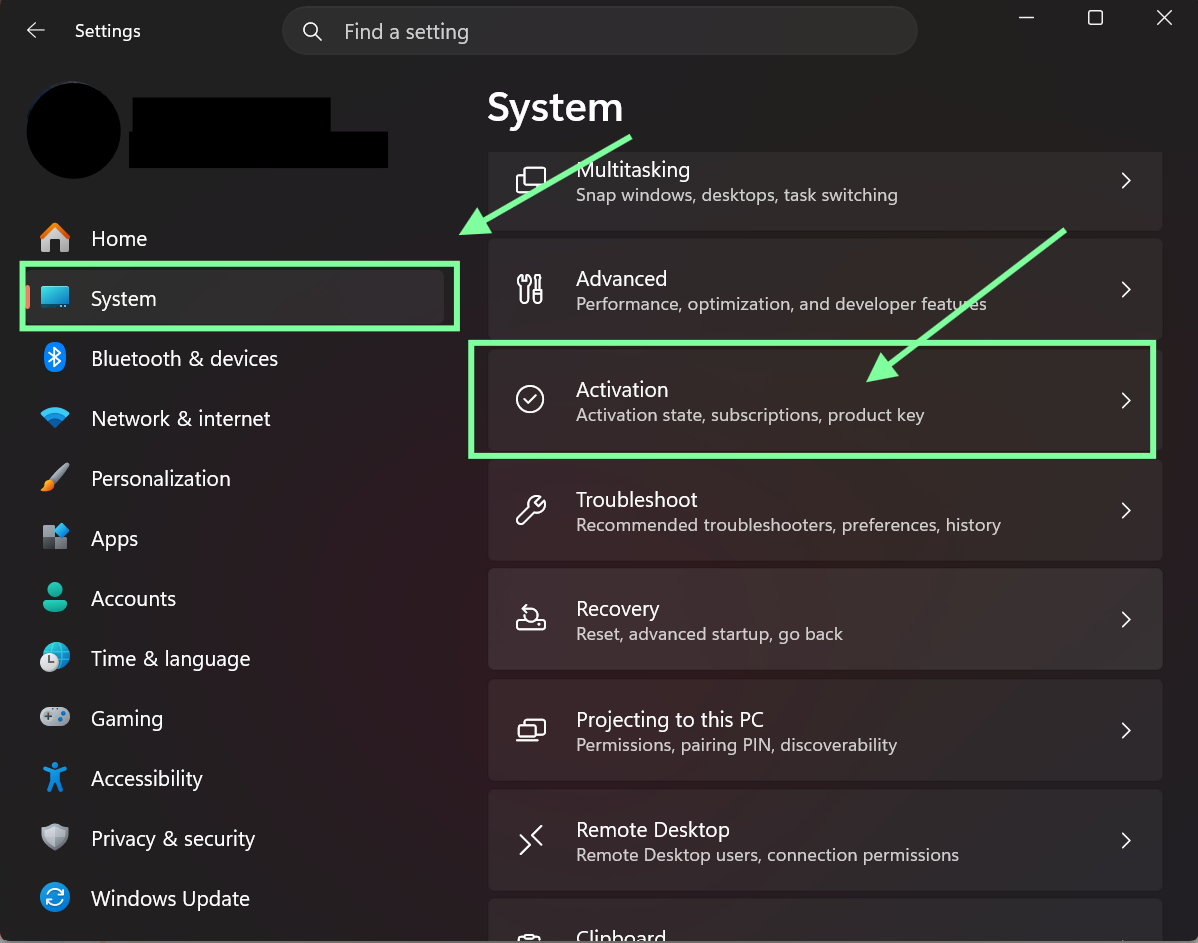
Go to System.
- 3
Click Activation.
- 4
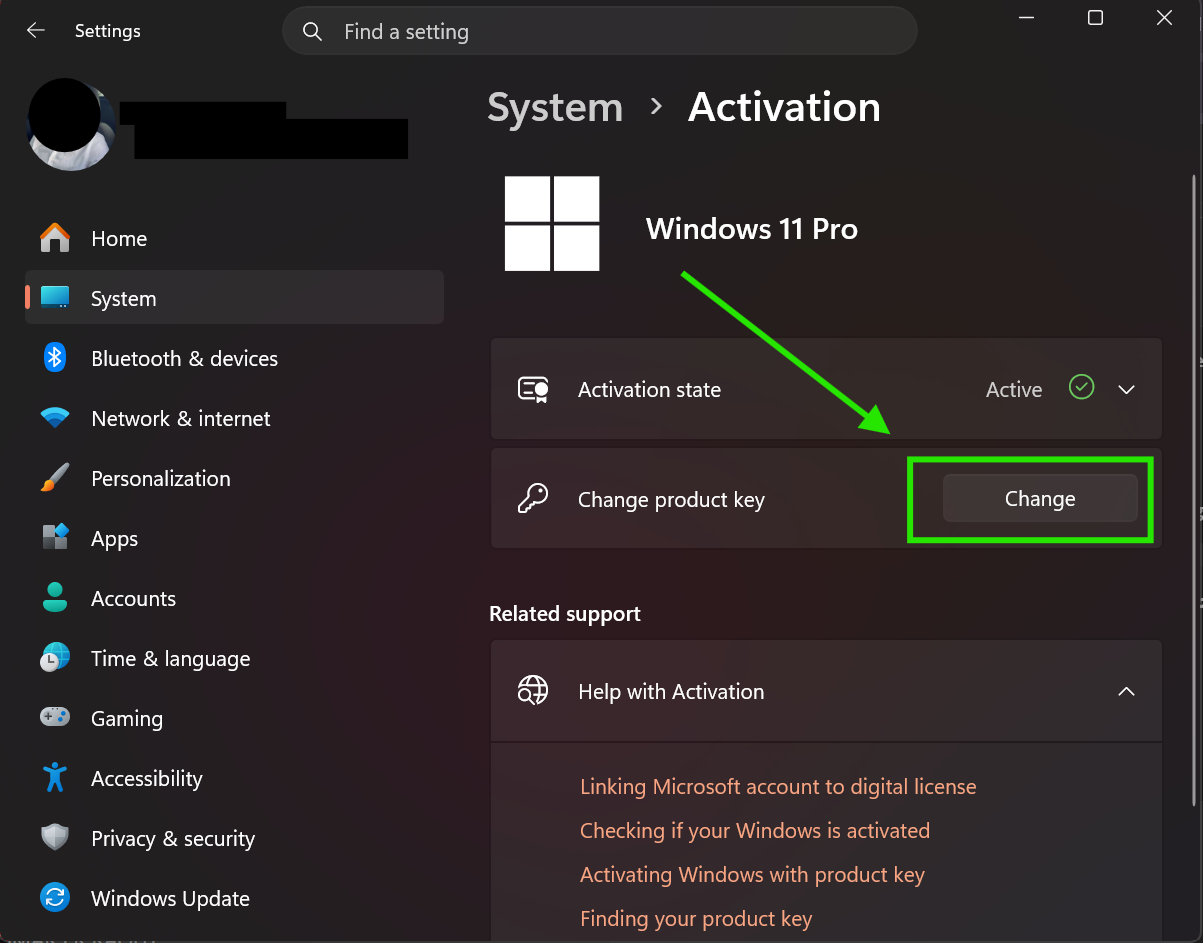
Click Change product key.
- 5
Enter your activation key carefully.
- 6
Confirm and wait for Windows to process activation.
- Make sure the key matches the installed Windows edition.
- Check the internet connection before activating.
- Enter the key exactly as provided.
- Confirm the correct Windows version before activation.
Method 2 - Activation via Command Prompt (CMD)
Alternative MethodImportant: Use this method only if standard activation does not work. Command Prompt must be opened as Administrator.
- 1
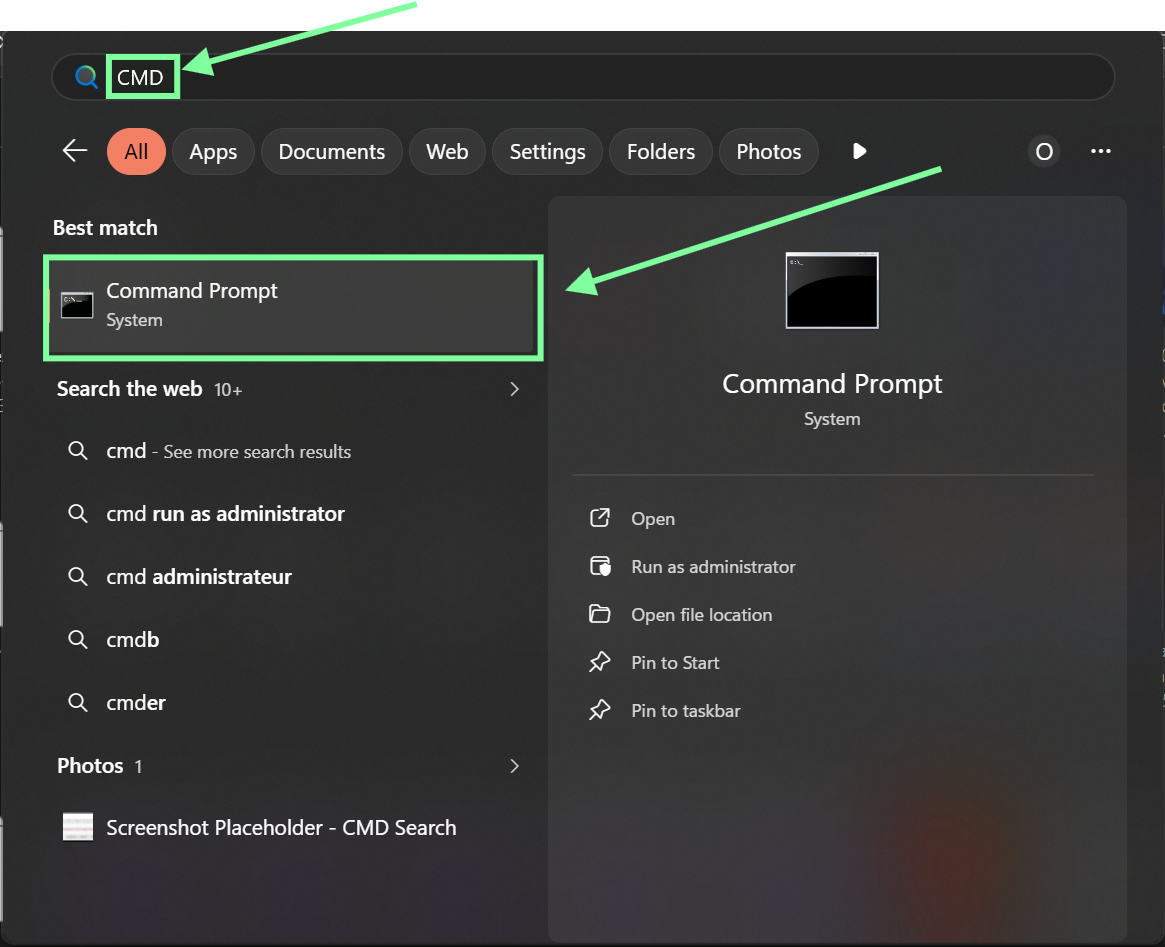
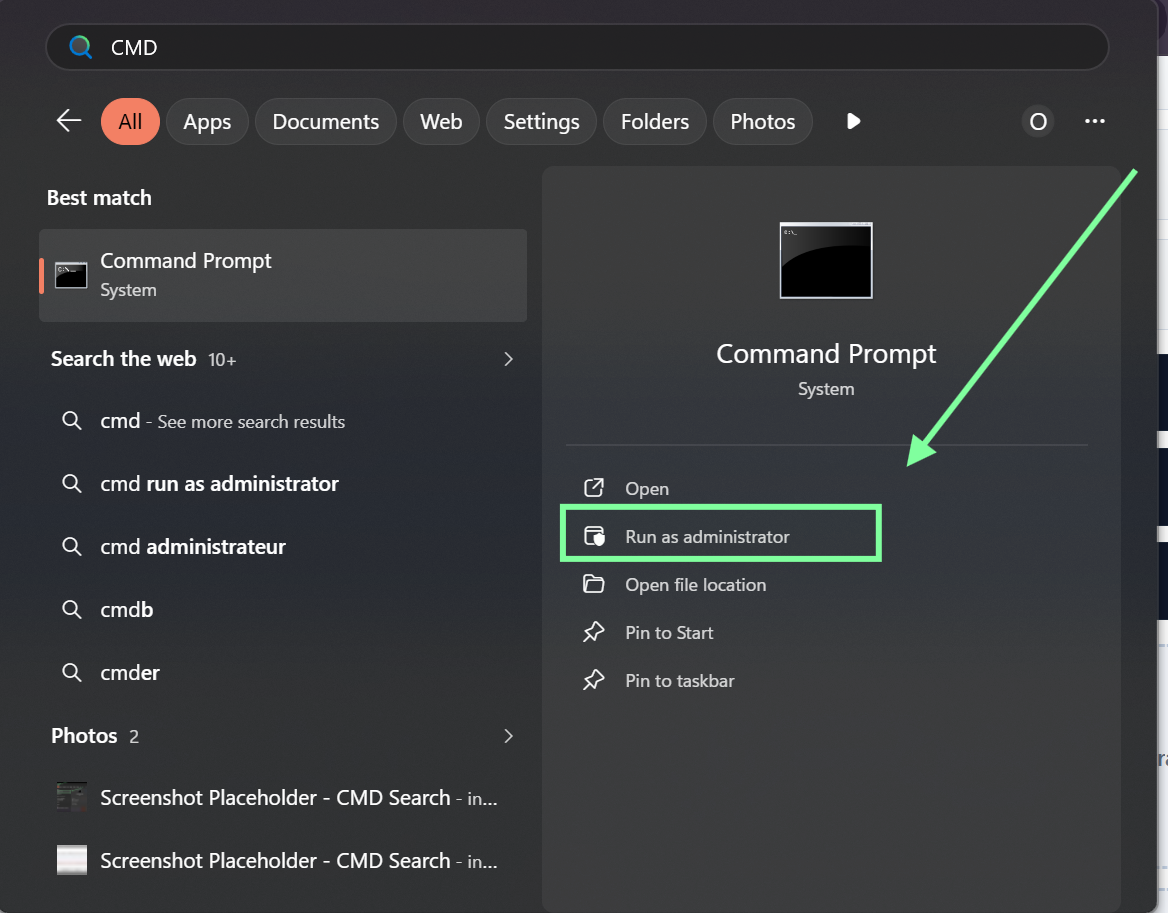
Click the Start button.
- 2
Type CMD.
- 3
Right-click on Command Prompt.
- 4
Select Run as administrator.
- 5
If User Account Control appears, click Yes.
- 6
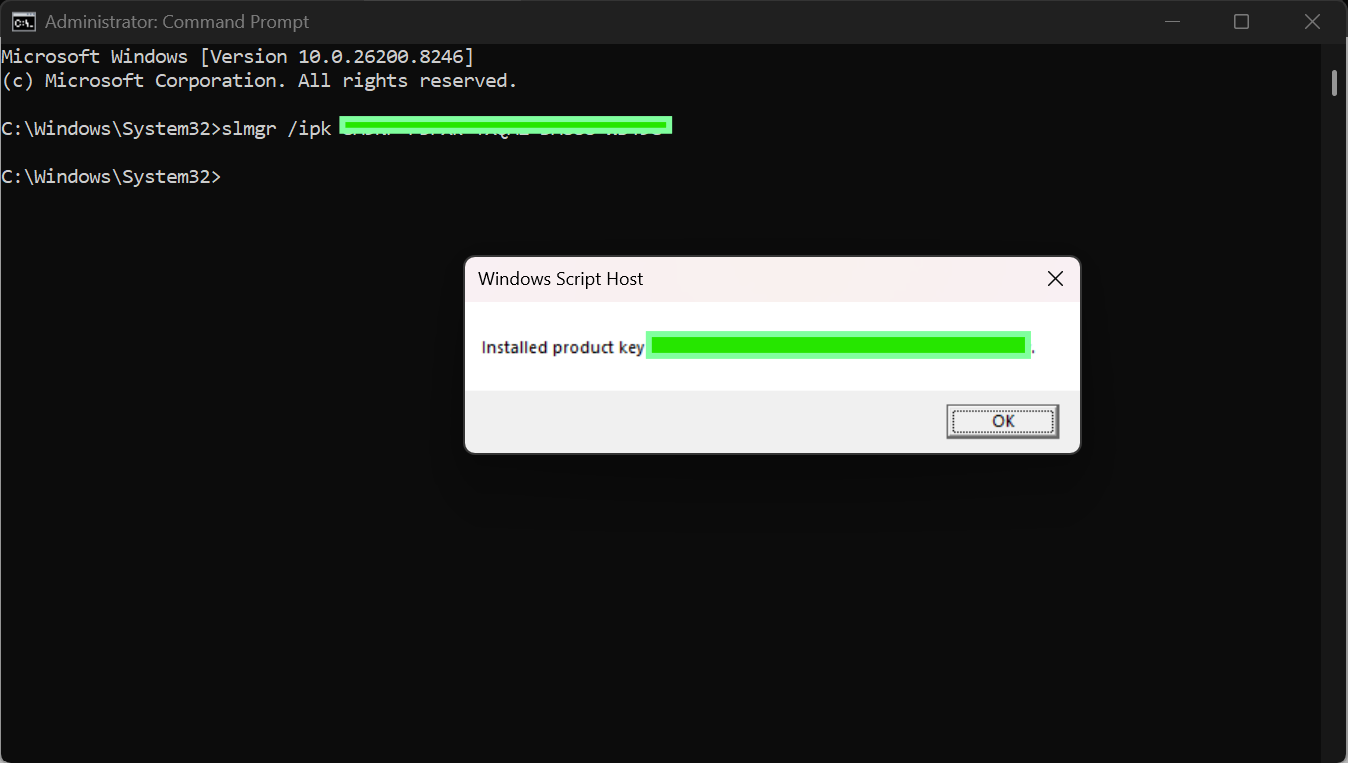
Enter the command to install the product key.
- 7
Press Enter and wait for the confirmation message.
- 8
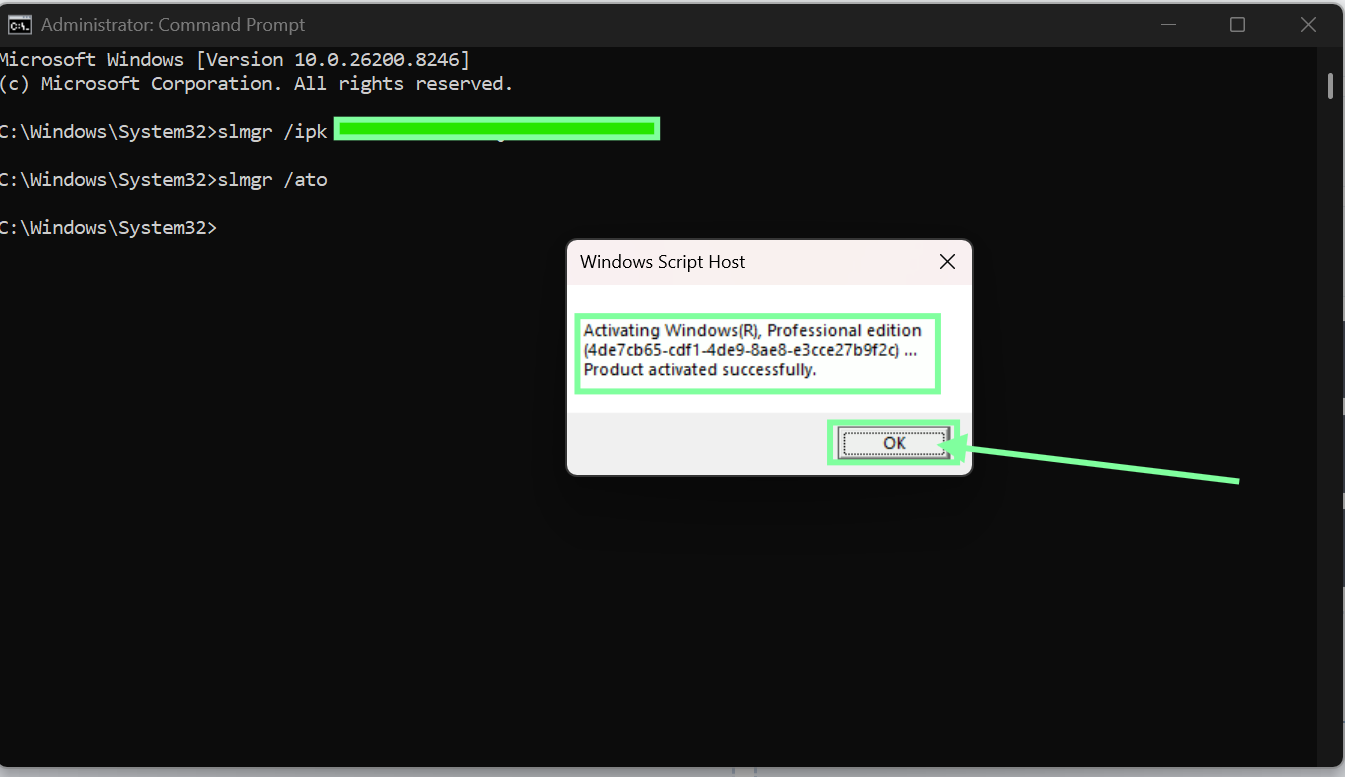
Enter the command to activate Windows online.
- 9
Press Enter again.
- 10
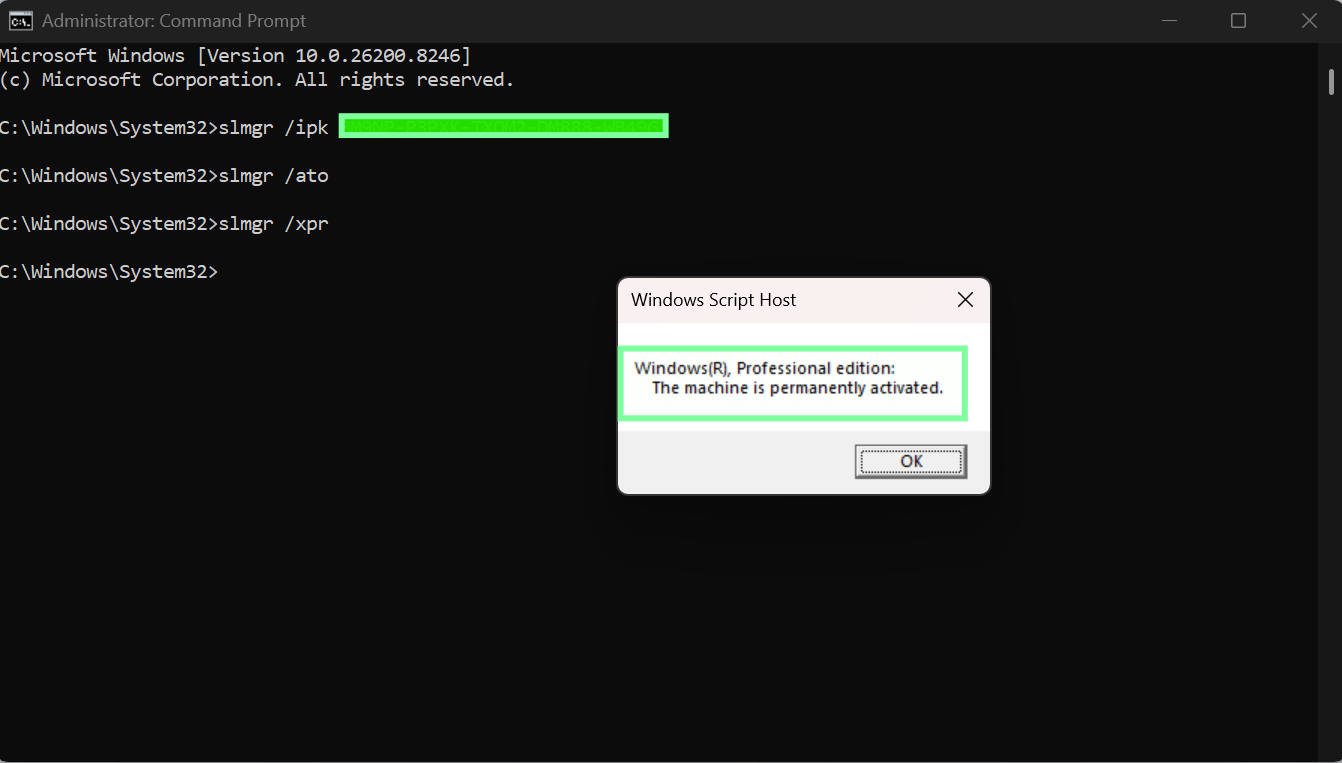
Enter the command to check activation status.
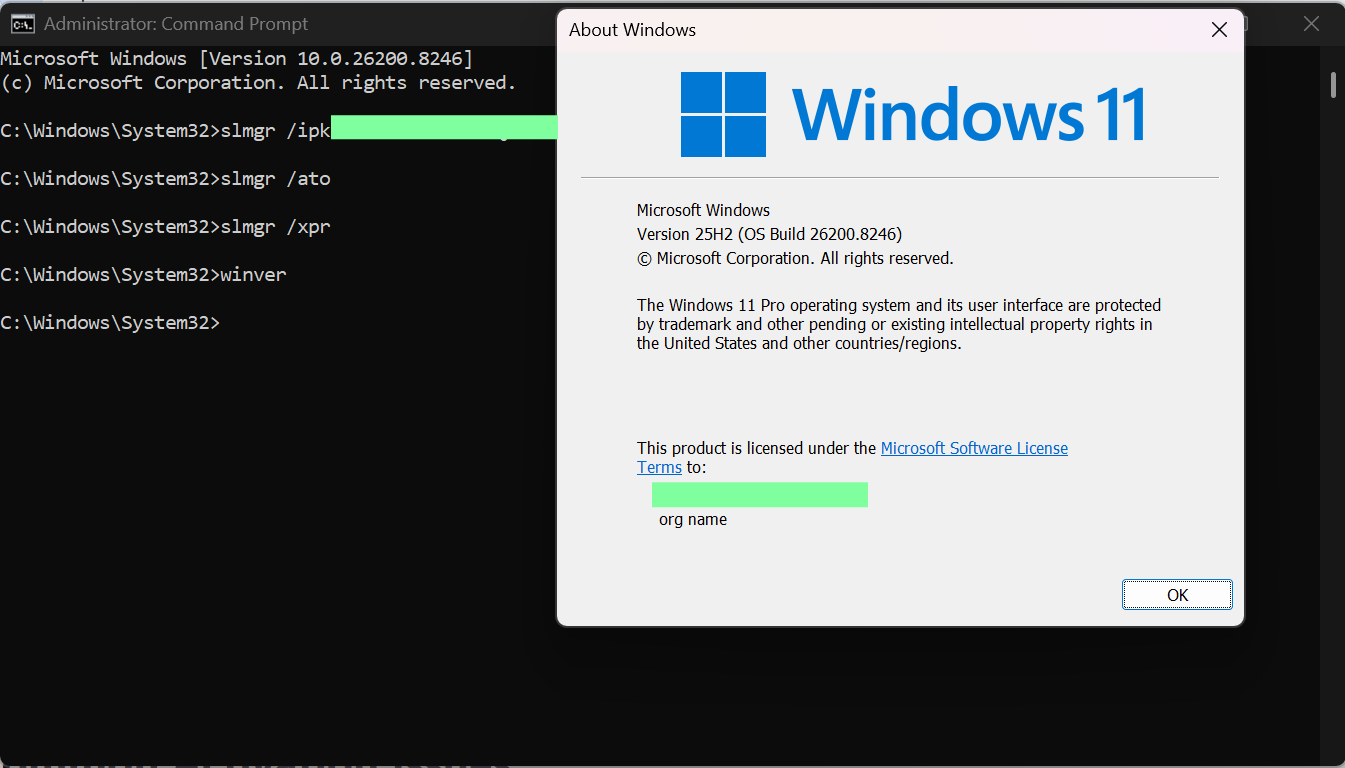
slmgr /ipk XXXXX-XXXXX-XXXXX-XXXXX-XXXXX
slmgr /ato
slmgr /xpr
How to Check Your Windows Edition
ImportantBefore activation, confirm whether your system is Windows Home or Windows Pro. The installed edition must match your purchased license.
- 1
Open Settings.
- 2
Go to System.
- 3
Open Activation.
- 4
Check the edition shown on the screen.
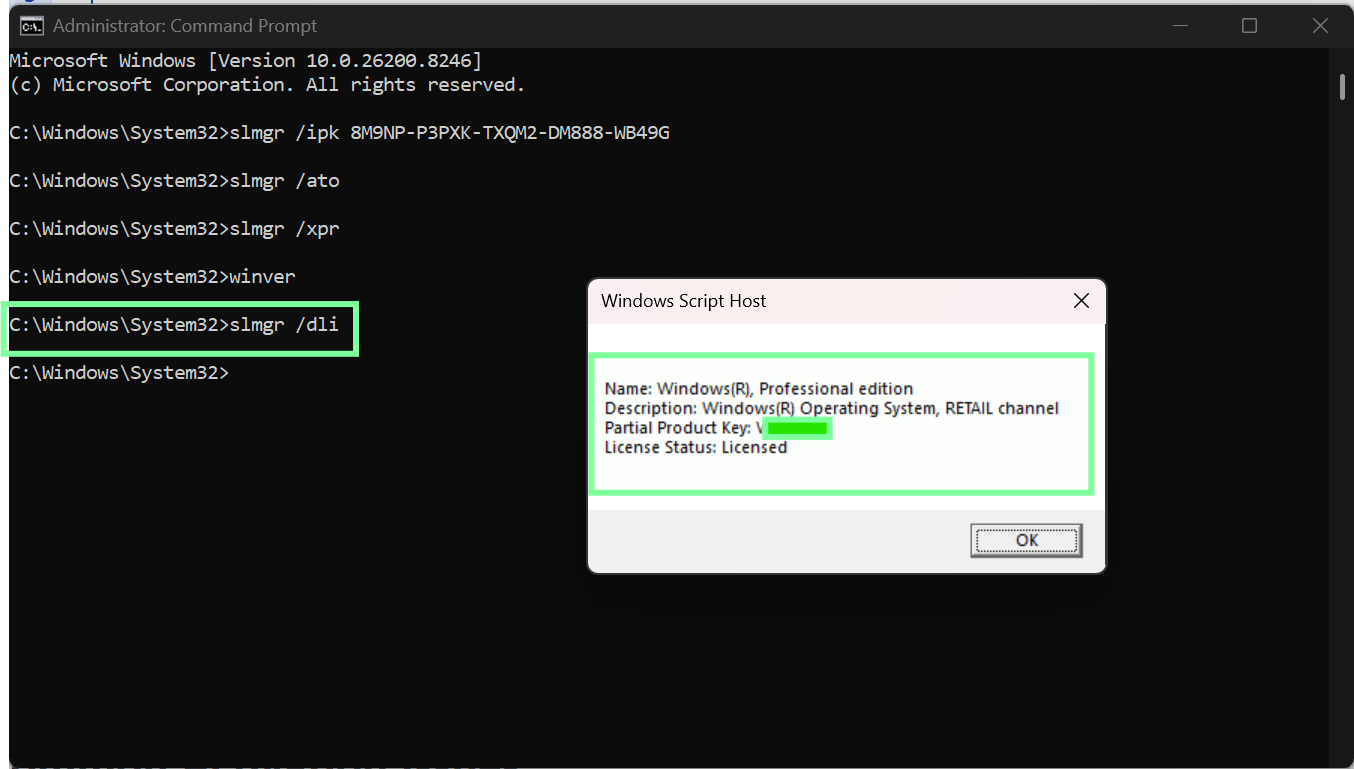
Alternative commands:
winver
slmgr /dli
Common Activation Issues
Key and Edition Do Not Match
If the key is for a different edition, activation fails. Confirm whether your system is Home or Pro before retrying.
Key Entered Incorrectly
A small typing mistake can cause an error. Re-enter the key carefully and verify each character.
Internet Connection Problem
Online verification may fail without a stable connection. Check network access and try activation again.
Edition Changed on Device
If your system changed between Home and Pro, the original key may no longer apply. Verify the current edition first.
Temporary Microsoft Server Issue
Activation servers can be briefly unavailable. Wait a few minutes and run the activation command again.
Need Help?
If activation still does not work, please send the following details to support:
- A screenshot of the Activation page
- A screenshot of the error message
- Your order number
- The Windows edition currently installed
Our support team can guide you step by step until activation is completed.
Frequently Asked Questions
What should I do if my key does not work?
First confirm your installed edition matches the key edition, then re-enter the key carefully. If the error continues, try the CMD method and contact support with screenshots.
Can a Windows Home key activate Windows Pro?
No. A Windows Home key activates only Home, and a Pro key activates only Pro. The key must match the installed edition.
Why does CMD activation return an error?
Common reasons include edition mismatch, typing mistakes in commands, internet issues, or temporary activation server delays.
How do I check which Windows edition is installed?
Go to Settings > System > Activation, or run winver and slmgr /dli for additional details.
What screenshots should I send to support?
Send the Activation page, the exact error message, and any CMD confirmation windows to help support troubleshoot quickly.
 No products in the cart.