
Guide · SOLIDWORKS
SOLIDWORKS 2025Installation and Activation Guide
Follow this step-by-step guide to download, install, and activate SOLIDWORKS 2025 correctly.
Step 1 – Enter Your Download Information
Go to the official SOLIDWORKS Community Access download page:
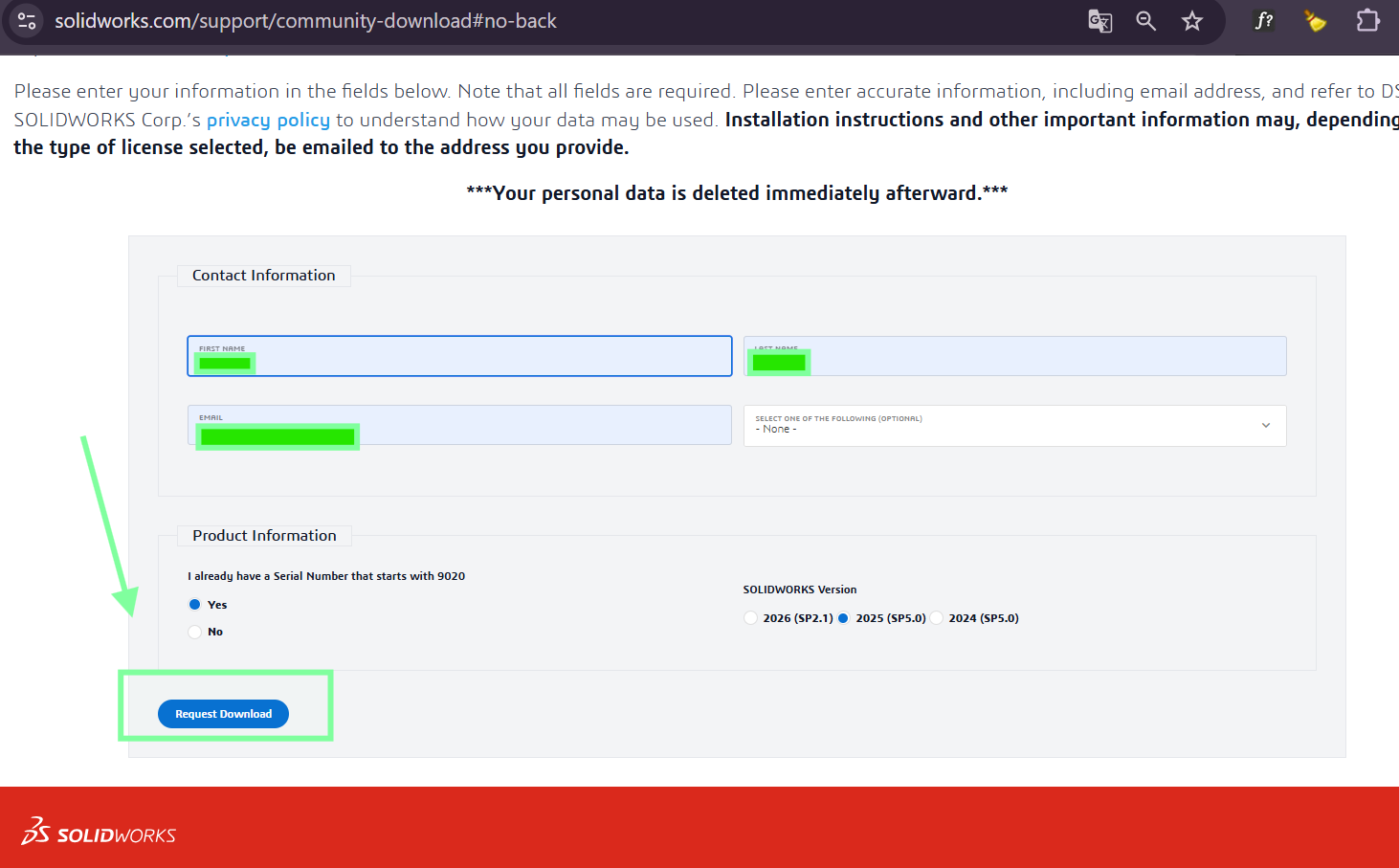
solidworks.com/SDK →Fill in the required contact information:
- First Name
- Last Name
Then, in the Product Information section:
- For the question I already have a Serial Number that starts with 9020, select Yes.
- Choose the required SOLIDWORKS version, for example 2025 SP5.0.
- Click Request Download.
Step 2 – Accept the SOLIDWORKS Terms of Use
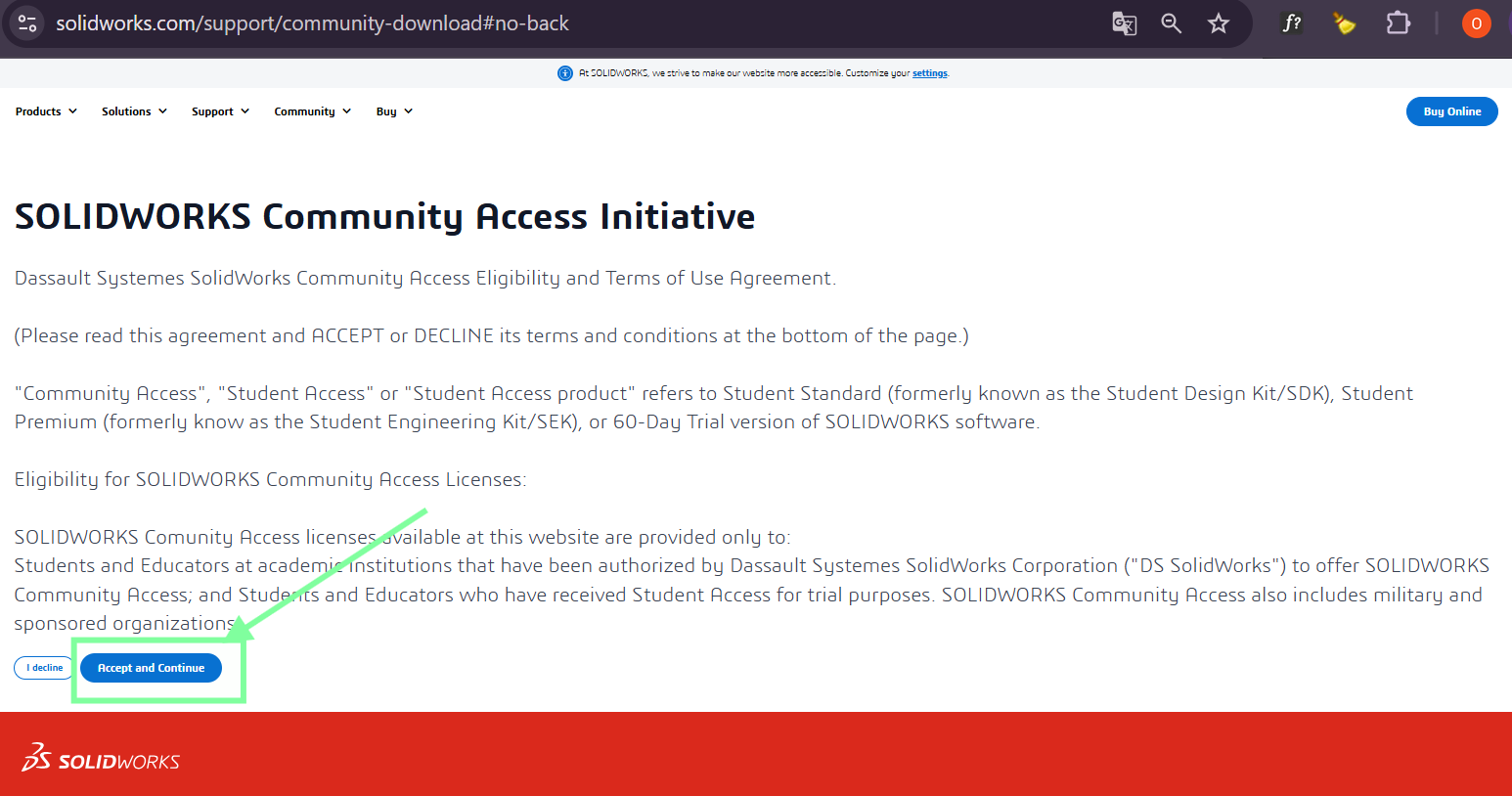
When the Terms of Use page appears, click:
Accept and Continue
This will accept the terms and allow you to continue with the download process.
Step 3 – Download the Installer
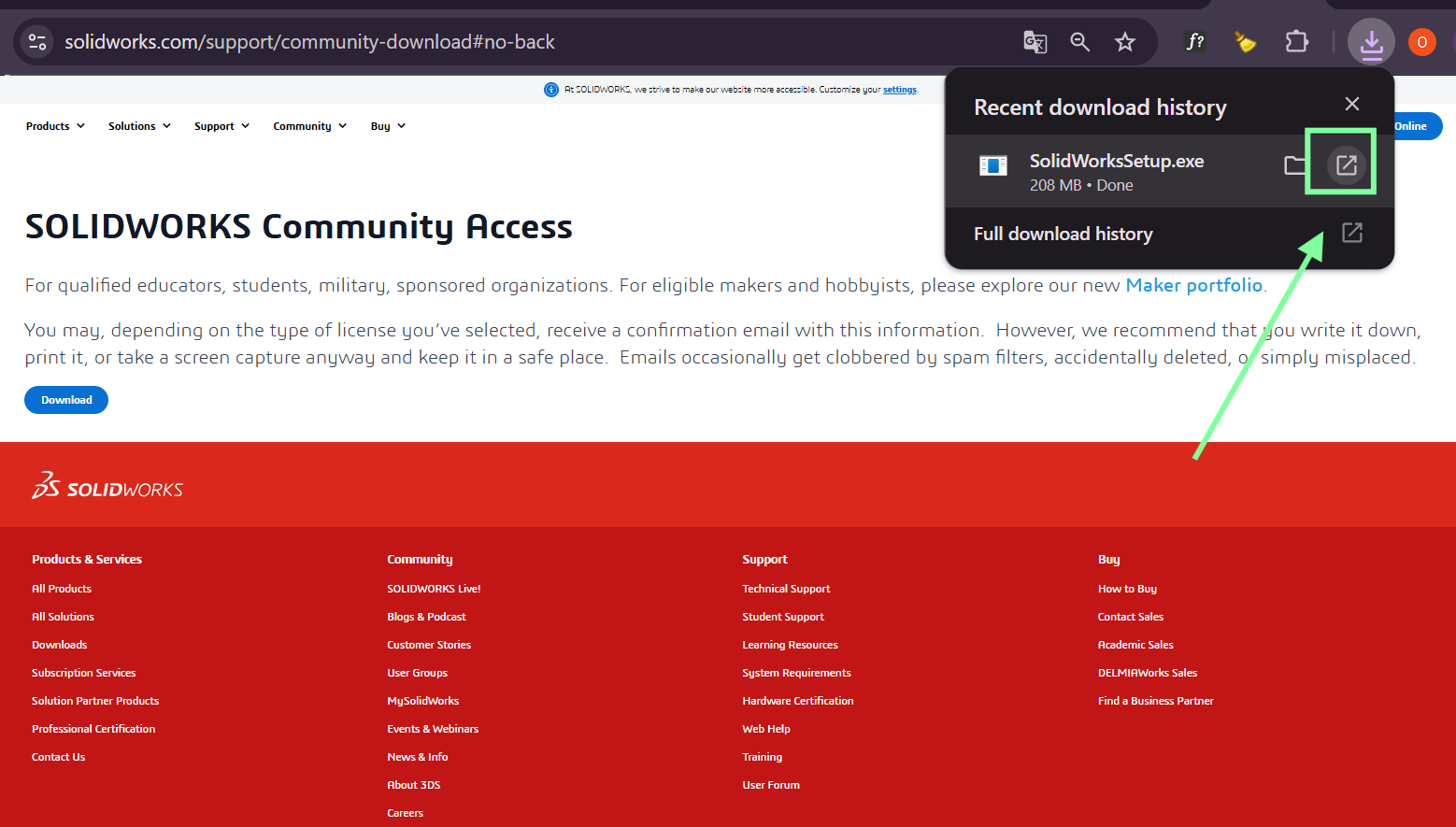
After submitting the request, the SOLIDWORKS download page will appear.
Click:
Download
The file SolidWorksSetup.exe will be downloaded.
Once the download is complete, open the file from your browser download list or from the Downloads folder.
Step 4 – Extract the Installation Files
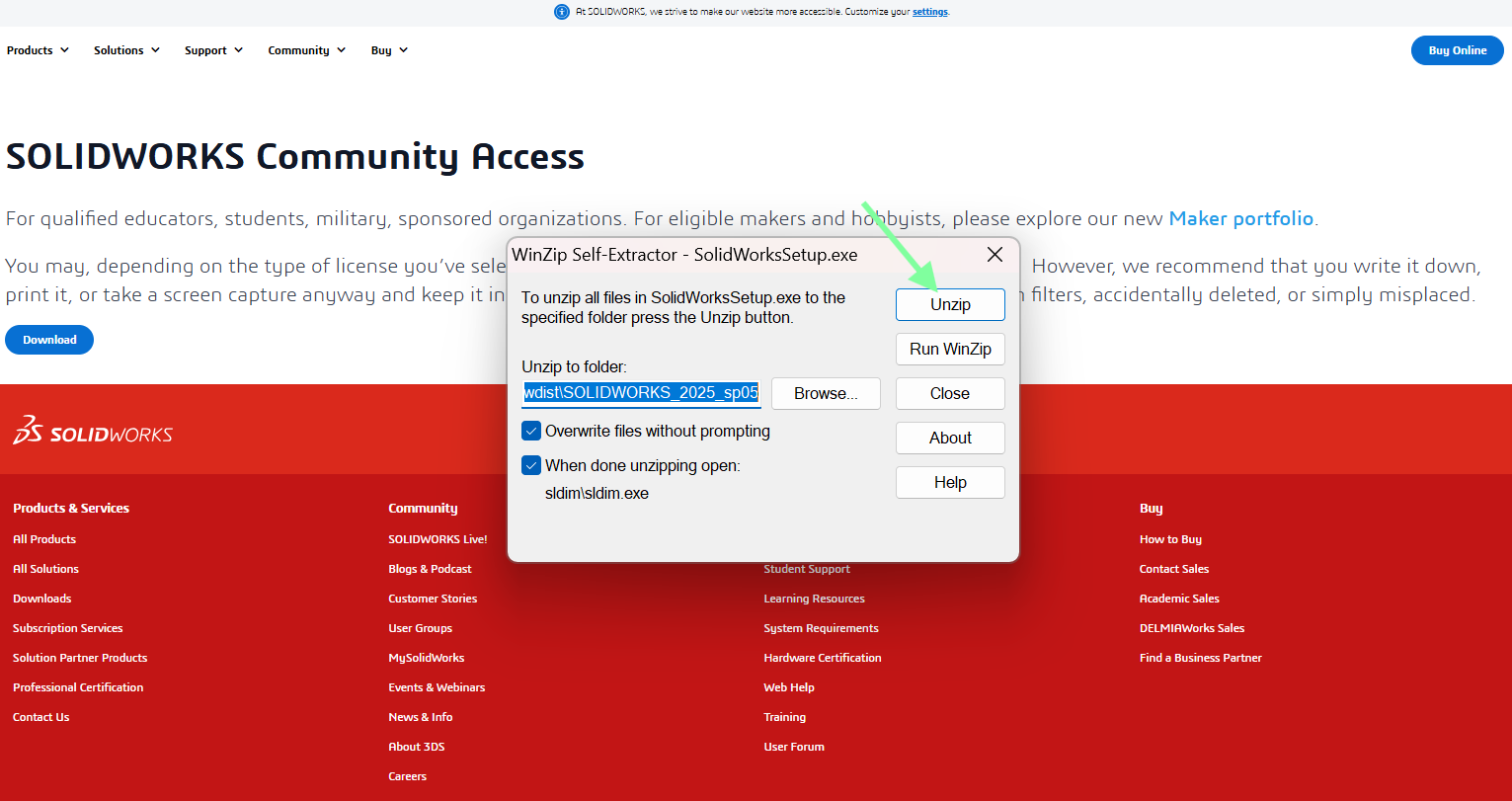
When you open SolidWorksSetup.exe, a WinZip Self-Extractor window will appear.
Click:
Unzip
Wait until the installation files are fully extracted.
After extraction, the SOLIDWORKS Installation Manager should open automatically.
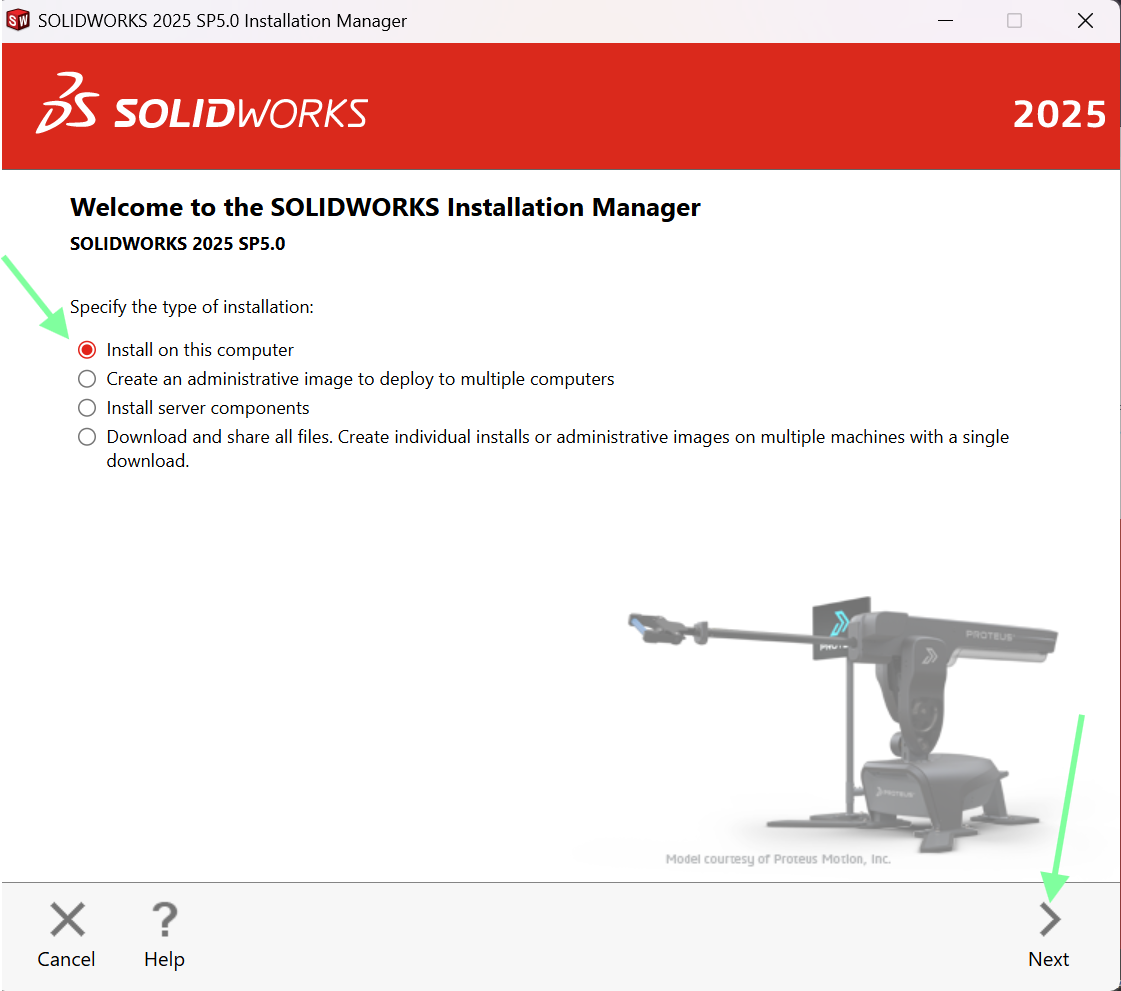
Step 5 – Choose the Installation Type
In the SOLIDWORKS Installation Manager, select:
Install on this computer
Then click:
Next
Step 6 – Enter the Serial Number
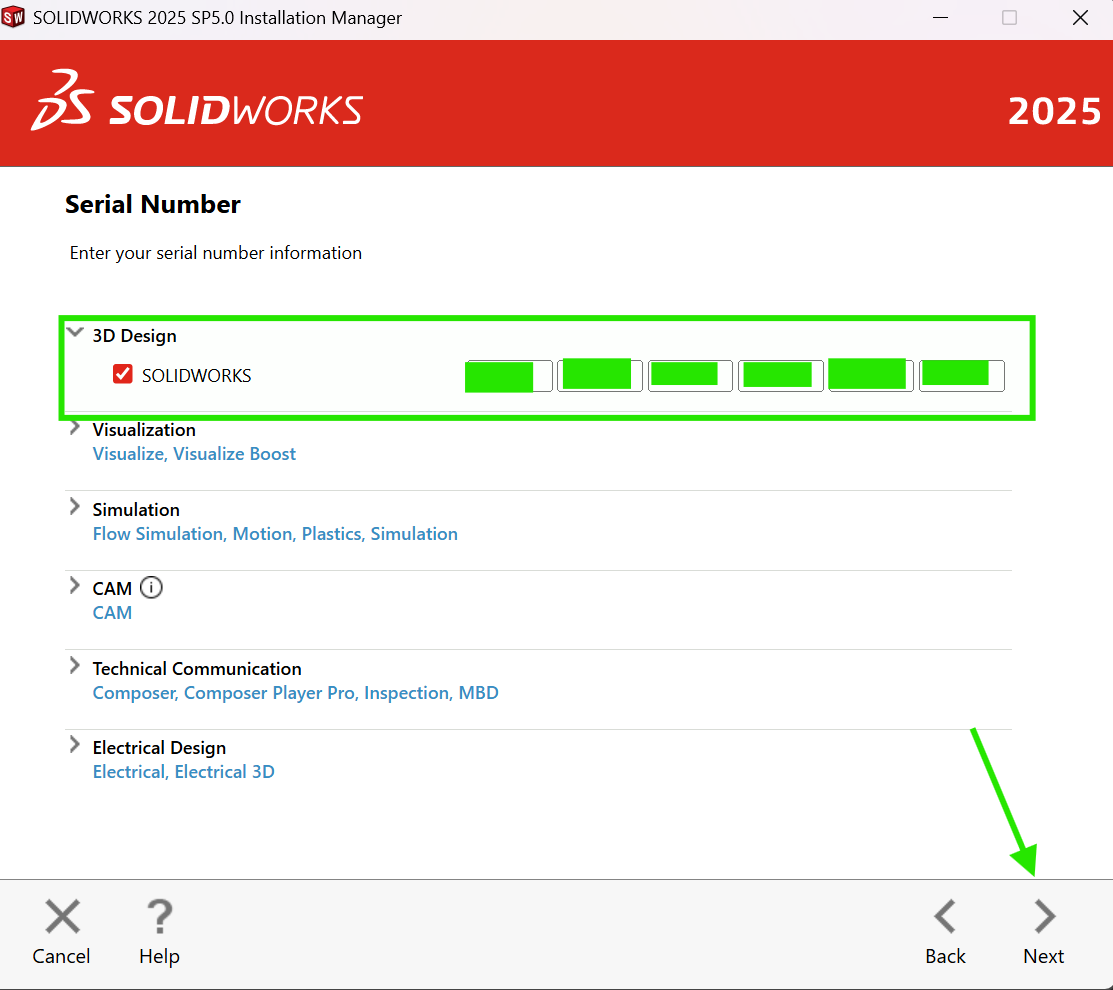
On the Serial Number page:
- Make sure SOLIDWORKS is selected under 3D Design.
- Enter the serial number you received.
- Click Next.
Step 7 – Review the Installation Summary
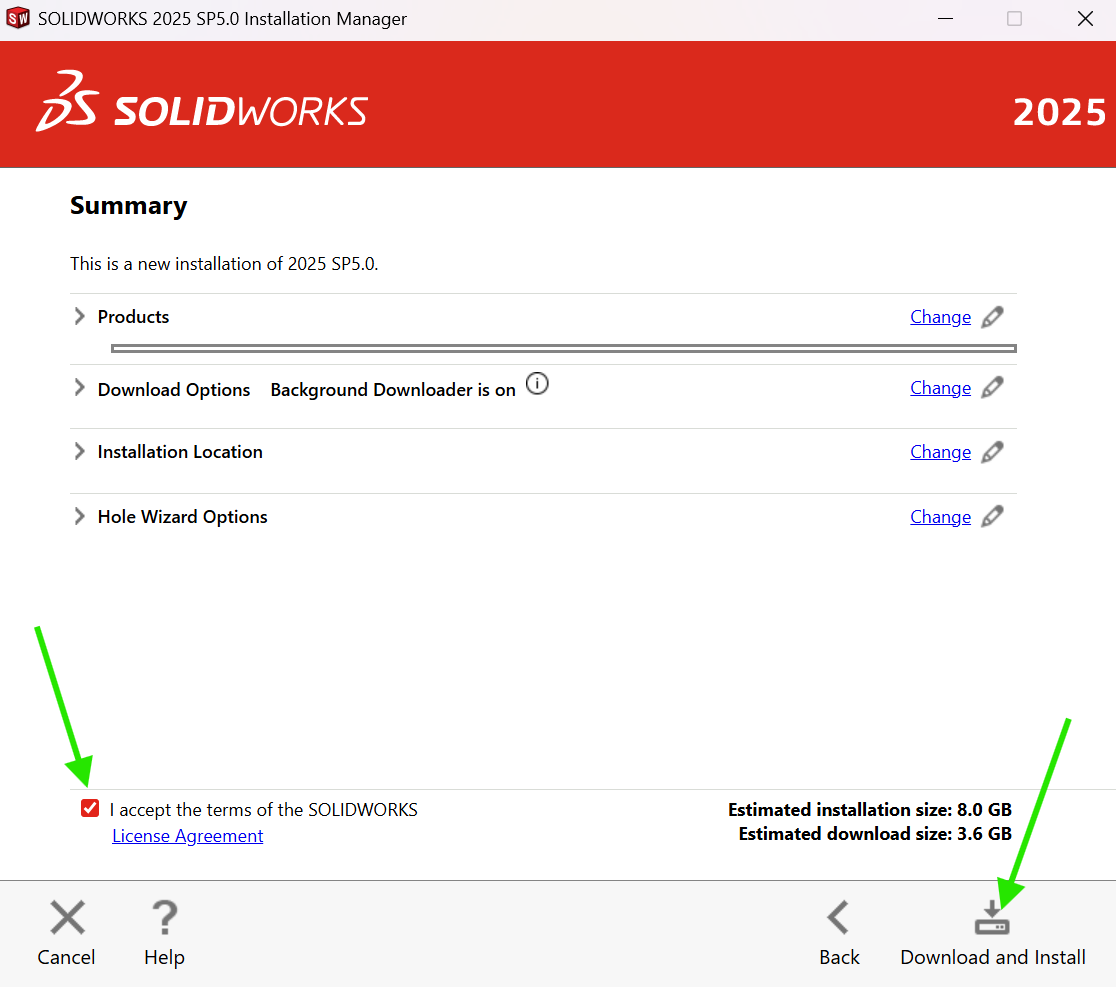
On the Summary page, review:
- Selected products
- Download options
- Installation location
- Estimated download and installation size
Then check the box:
I accept the terms of the SOLIDWORKS License Agreement
Click:
Download and Install
Step 8 – Wait for Installation to Complete
SOLIDWORKS will start downloading and installing the required files.
Please wait until the installation process is fully completed.
- Do not close the installation window.
- Do not turn off your computer during installation.
- Make sure your internet connection is stable.
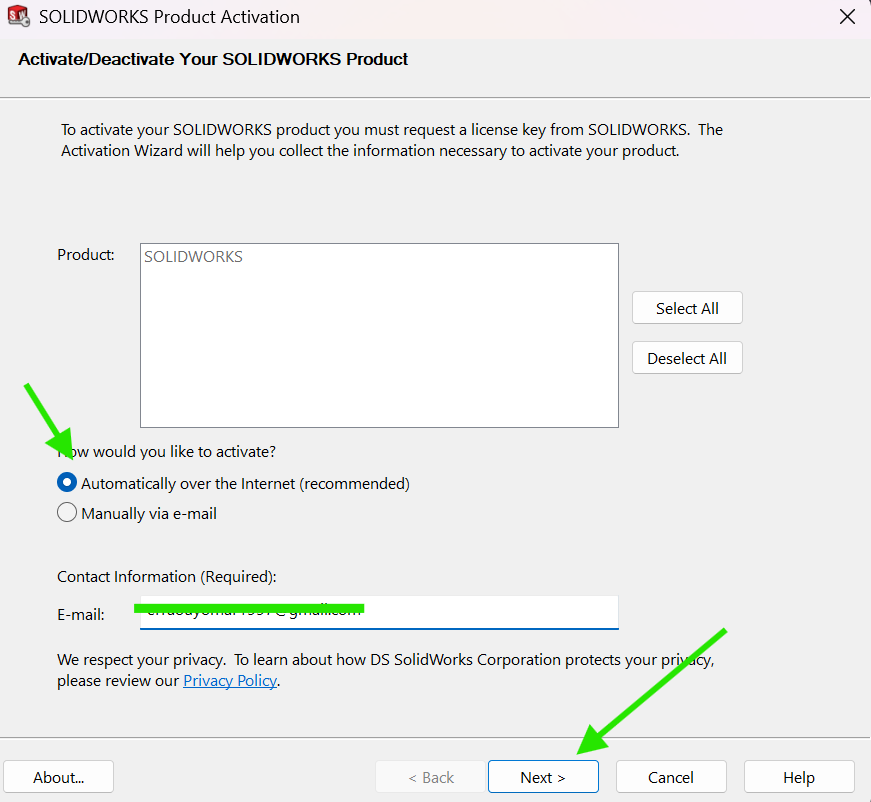
Step 9 – Launch SOLIDWORKS 2025
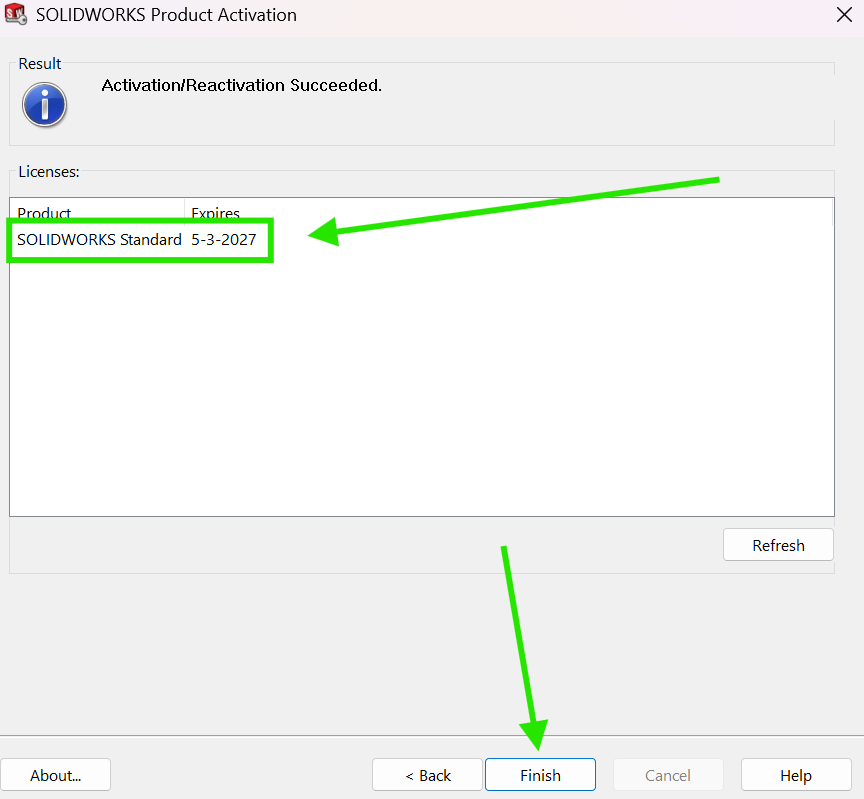
After the installation is complete, click:
Finish
Restart your computer if requested.
Then open SOLIDWORKS 2025 from the desktop shortcut or from the Windows Start menu.
Step 10 – Activate the License
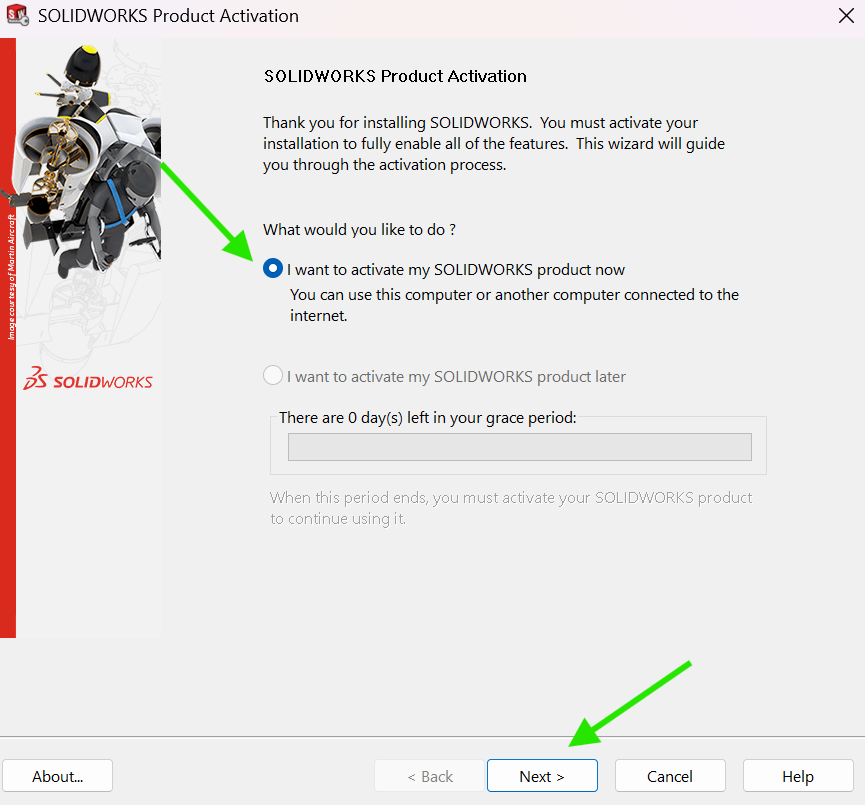
When you open SOLIDWORKS for the first time, the activation window will appear.
Select:
Activate/Reactivate your product license
Then choose:
Automatically over the Internet
Click:
Next
Wait until the activation is completed successfully.
Always use the SOLIDWORKS version that matches your serial number. Using the wrong version may cause installation or activation issues.
If any error appears during installation or activation, please send us a screenshot of the error message so we can assist you quickly.
Your computer must be running Windows 10 or Windows 11 64-bit. Make sure you have enough free disk space before starting the installation.
QuestionsFrequently Asked Questions
Do I need an internet connection?
Yes, an internet connection is required for downloading, installing, and activating SOLIDWORKS.
What should I do if the serial number is not accepted?
Make sure you are using the correct SOLIDWORKS version and that the serial number was entered exactly as received, without extra spaces.
Can I close the installer during installation?
No, please do not close the installer until the installation is fully completed.
What should I do if activation fails?
Please take a screenshot of the activation error and contact support for assistance.
Can antivirus software block the installation?
Yes, in some cases antivirus software may block installation files. If this happens, temporarily disable it and try again.
 No products in the cart.